How to Print Multiple Pictures on One Page, The Easy Way With PhotoPrinter

14 min read
Contents
Photo Printer

Set the size, check the ruler, print once.

Quick Answer

To print multiple pictures on one page, put them on a single sheet at a set size, check the preview, then print at 100% scale. On Windows, right-click your photos and choose Print. On a Mac, use Preview’s “Pages per Sheet” option. On a phone, the built-in tools won’t do it, so use an app like PhotoPrinter, where you set the paper size, add your photos, type in the size you want for each, and print.

✓  Easy to Use
✓  Save Paper & Ink
✓  Works on All Devices
✓  Multiple Layout Options

Stop Guessing Print Sizes: Print Multiple Photos Perfectly Every Time

Most people find out how confusing printing is the first time they try to fit four photos on one sheet.

You pick your photos and hit Print. Your phone hands you one photo per page. Or the printer “helpfully” shrinks everything to fit, leaves a fat white border, and chops the top off your kid’s head. Then you burn through three sheets of photo paper before anything looks right.

The real problem is that print dialogs weren’t built for this. They think in pages, not photos, and they quietly scale your image to fit. That’s why a “4×6” often comes out a few millimetres off.

This guide fixes that. You’ll find:

  • Every reliable way to print multiple photos on one page, on iPhone, Android, Mac and Windows
  • Exact width and height for each photo on Letter, A4, A3 and 11×14
  • Fixes for gaps, wrong sizes, dull colours and connection problems
  • How to handle ID cards, collages and poster prints

We built Photo Printer to solve exactly this, so it’s the main method here. But we also cover the built-in options, because sometimes they’re good enough.

Stop Guessing Print Sizes

Set the exact size you want, see it before you print, and never waste paper again.

What Do You Actually Want to Do?

There are two different jobs hiding behind this search, and they need different tools.

Printing multiple photos on ONE page (grid layout)

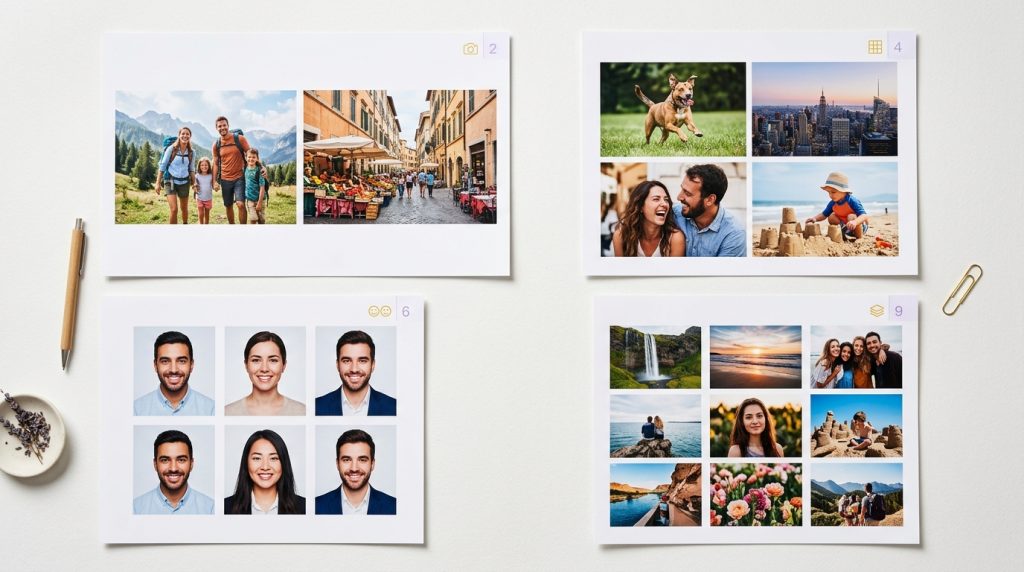
This is what most people want: 2, 4, 6 or 9 photos on one sheet, like this:

  • 2 photos: two larger prints, ideal for 5×7-style pairs or before/after shots
  • 4 photos: the everyday choice for albums, gifts and school projects
  • 6 photos: great for passport-sized photos or small keepsakes
  • 9 photos: wallet-style prints, stickers, or a “contact sheet” of a whole shoot

You’d use it to save paper, cut prints out by hand, or make a quick collage.

Printing ONE large photo across MULTIPLE pages (poster printing)

This is the opposite job. You take one big image and split it into tiles across several sheets, then tape them together into a poster. It’s a different tool from a grid layout, and we cover it near the end.

Four printed photo sheets displaying different grid layouts: 2-up, 4-up, 6-up, and 9-up arrangements, each with vibrant, perfectly-sized photos.
Caption - Choose your layout: 2, 4, 6, or 9 photos per page same high-quality result, no wasted paper.

Print Multiple Photos With PhotoPrinter

Choose your paper size, add your photos, set each one’s exact size, check the on-screen preview, and print at true 100% scale. Most people finish their first sheet in a few minutes.

Step 1: Download PhotoPrinter

PhotoPrinter works on iPhone, iPad, Android and Mac, and the core tools are free.

  • Download on the App Store
  • Get it on Google Play

Steps 2 to 5: Print your first set

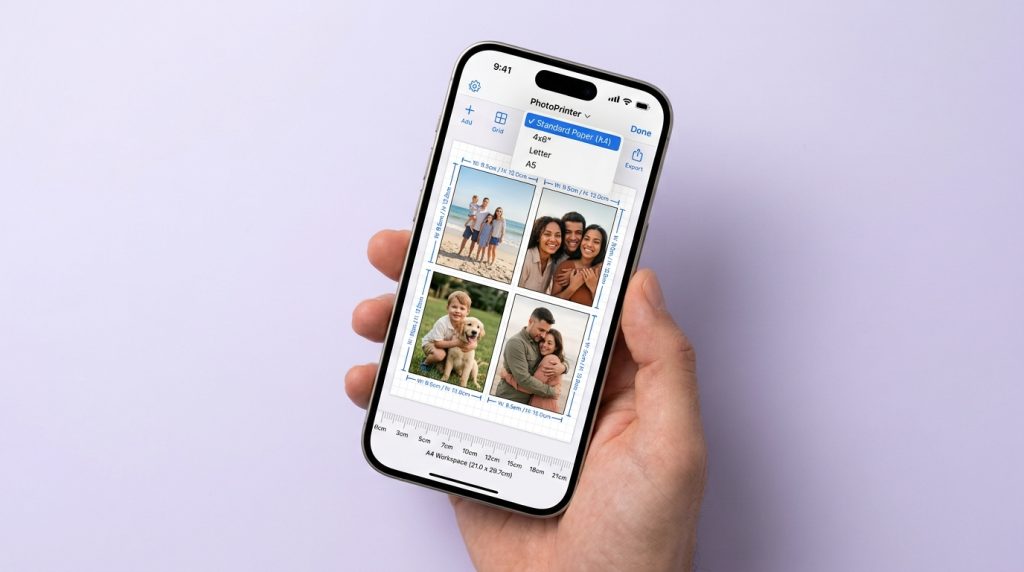
  1. Pick your paper size. Choose Letter, A4, 4×6, Legal or whatever is sitting in your tray. The layout redraws to match.
  2. Add your photos. Import from your gallery. You can add several photos to one sheet, and each one can have its own size.
  3. Choose the layout and size. Use the built-in six-up layout, or type your own width and height for 2, 4 or 9 photos. The sizes are in the tables below.
  4. Check the preview. The on-screen ruler shows the real size. If a photo’s resolution is too low for the size you picked, the app warns you before you print.
  5. Print. Send it to your printer over AirPrint or Mopria at 100% scale, or export a high-resolution file and print it later.
PhotoPrinter app on iPhone displaying paper size selector and photo layout preview with dimension guides and ruler visible on screen.
Caption - Set exact dimensions in the app, preview at 100% real size see your layout before it prints.

Why this method works better

  • No confusing printer dialogs. The size is set before it reaches the printer, so there’s nothing to “fit to page.”
  • You see the real size first. Checking the preview costs nothing. A test print costs paper.
  • Nothing gets cropped without you knowing. The app builds in margins so edges don’t get clipped.
  • Your photos stay on your device. They’re processed locally to build the layout, not uploaded.
  • You can save a draft. If you print the same layout every few months, you don’t have to rebuild it.

Can I Print Multiple Photos Without an App?

On a computer, yes. Windows and Mac both have built-in options. On a phone, not really. iPhone and Android print one photo per page from the gallery, and you’ll need an app or a collage first.

On Windows (native method)

  1. Open the folder and select your photos (hold Ctrl and click each one).
  2. Right-click and choose Print.
  3. In the Print Pictures window, pick your printer, paper size and quality.
  4. On the right, choose a layout such as 3.5×5 (4 per page), Wallet (9 per page) or Contact sheet.
  5. Untick Fit picture to frame if you don’t want the edges cropped.
  6. Click Print.

You’re limited to Windows’ preset layouts. If you want 4 photos at a specific size that isn’t on the list, this won’t do it.

On Mac (native method)

  1. Select your photos in Finder, right-click and choose Open With > Preview.
  2. In Preview, press Cmd + A in the sidebar to select every thumbnail.
  3. Go to File > Print, then click Show Details if you only see a small dialog.
  4. In the dropdown under the printer name, choose Layout.
  5. Set Pages per Sheet to 2, 4, 6 or 9, then print.

Preview fits images into equal cells, so you can’t set an exact size, and the spacing between photos is fixed.

On iPhone (native method)

  1. Open the Photos app, tap Select, and choose your photos.
  2. Tap the Share button, then Print.
  3. Pick your AirPrint printer and print.

The catch: This prints each photo on its own page, and the print options are basic. If you want several on one sheet, you need a layout app like PhotoPrinter, or a collage saved to your camera roll first.

On Android (native method)

  1. Open the photo in your gallery or Google Photos.
  2. Tap the three-dot menu, then Print.
  3. Choose your printer from the list. Most modern printers show up through Android’s built-in print service or Mopria.
  4. Adjust paper size and copies, then print.

Same limit as iPhone: one photo per page. Also, you may see old guides mention Google Cloud Print. It no longer works, so ignore those steps.

Using Word or Google Docs

If you’re already comfortable in a document editor, this works too. Insert a table with 2 columns and 2 rows, drop on

e photo in each cell, and set the exact height and width for each picture. Then print at 100% scale. It’s more manual, but it gives you exact sizes.

Print Multiple Photos the Easy Way

Set your size, check the preview, and hit print, no printer dialog confusion.

PhotoPrinter Step-by-Step by Device

The flow is the same everywhere. What changes is how the print job reaches your printer.

How to print multiple pictures on one page from your iPhone

  1. Download PhotoPrinter from the App Store.
  2. Import your photos from your library.
  3. Choose your paper size, then set each photo’s size (or use the six-up layout).
  4. Check the preview and the ruler.
  5. Tap Print and pick your AirPrint printer. Your iPhone and printer need to be on the same Wi-Fi network.

How to print multiple photos on one page on Android

  1. Download PhotoPrinter from Google Play.
  2. Import from your gallery or Google Photos.
  3. Choose the paper size and the size for each photo.
  4. Check the preview.
  5. Print through your printer’s Mopria or built-in print service. If your printer doesn’t show up, install its manufacturer’s print plugin.

How to print multiple photos on one page on Mac

  1. Get a PhotoPrinter for Mac.
  2. Import your photos and choose your paper size.
  3. Set each photo’s size and check the preview.
  4. Choose your printer in the print dialog and print at 100% scale.

What Size Should Each Photo Be? Exact Dimensions

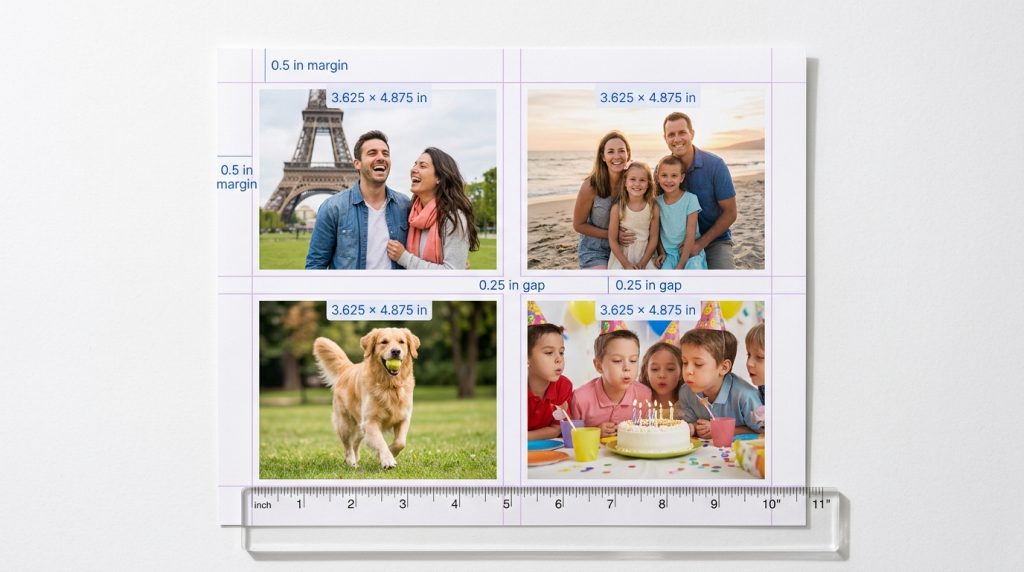
On a US Letter page (8.5×11 in) with 0.5-inch margins, four photos fit at about 3.625 × 4.875 inches each. That leaves a quarter-inch gap between them.

Here’s the math, so you can adjust it. Take the page size, subtract the margins on both sides, subtract the gaps between photos, then divide by the number of photos across or down. Most home printers can’t print right to the edge, so keep at least a 0.25 to 0.5 inch margin unless your printer supports borderless printing.

Letter (8.5 × 11 in), 0.5 in margins, 0.25 in gaps

Layout

Grid

Each photo (W × H)

2 photos

1 × 2

7.5 × 4.875 in

4 photos

2 × 2

3.625 × 4.875 in

6 photos

2 × 3

3.625 × 3.17 in

9 photos

3 × 3

2.33 × 3.17 in

A4 (210 × 297 mm), 10 mm margins, 5 mm gaps

Layout

Grid

Each photo (W × H)

2 photos

1 × 2

190 × 136 mm

4 photos

2 × 2

92.5 × 136 mm

6 photos

2 × 3

92.5 × 89 mm

9 photos

3 × 3

60 × 89 mm

A3 (297 × 420 mm), 10 mm margins, 5 mm gaps

Layout

Grid

Each photo (W × H)

2 photos

1 × 2

277 × 197.5 mm

4 photos

2 × 2

136 × 197.5 mm

6 photos

2 × 3

136 × 130 mm

9 photos

3 × 3

89 × 130 mm

11 × 14 in, 0.5 in margins, 0.25 in gaps

Layout

Grid

Each photo (W × H)

2 photos

1 × 2

10 × 6.375 in

4 photos

2 × 2

4.875 × 6.375 in

6 photos

2 × 3

4.875 × 4.17 in

9 photos

3 × 3

3.17 × 4.17 in

How to print 4 pictures on one page

Set the paper to Letter or A4, use the 2 × 2 sizes above, and print at 100%. The 3.625 × 4.875 in cell is close to the 3:4 shape of most phone photos, so very little gets cropped.

How to print 2 pictures on one page

Use portrait orientation and stack two landscape photos, or switch to landscape and place them side by side. Pick whichever matches how your photos are shot.

Passport photos: six on a 4×6 sheet

Six 2×2 inch (51×51 mm) passport photos fit exactly on a 4×6 sheet, in 2 columns and 3 rows. That only works with borderless printing, so check that your printer supports it, or use a Letter or A4 sheet instead.

Printed 4-photo grid with overlaid dimension guides showing exact measurements: 3.625 × 4.875 inches per photo, with margin and gap annotations.
Caption - The math: 8.5" – margins – gaps = 3.625 × 4.875" per photo. Type the size, print once, done.

Common Problems and How to Fix Them

Why are there gaps or uneven spacing between my photos?

Spacing comes from margins and the gap between photos. Native tools use fixed spacing you can’t change. Fix it by working out the gap yourself (the tables above assume 0.25 in or 5 mm), and check the preview before printing. If a printer has a built-in non-printable margin, your photos will still sit inside it.

Why do my photos print at the wrong size?

Nearly always, the printer or the phone is applying “Fit to Page” or “Auto-scale.” In the print dialog, look for Scale: 100% or Actual Size. Also check that the paper size in the dialog matches the paper in the tray. Letter versus A4 mismatches cause most surprises.

Why do my prints look dull or washed out?

  • Set the paper type to match what’s loaded (photo paper, not plain).
  • Choose Best or Photo quality.
  • Use actual photo paper for photos.
  • Remember that a screen glows and paper doesn’t, so prints always look a touch darker.

Why won’t my printer connect?

  • Put the phone and printer on the same Wi-Fi network. Many printers only support 2.4 GHz, so a 5 GHz-only network may hide them.
  • Restart the printer, the router and the phone.
  • On iPhone, check that the printer supports AirPrint. On Android, make sure the print service or the manufacturer’s plugin is turned on.
  • Update the printer’s firmware.

Special Uses: IDs, Collages and Posters

How do I print the front and back of an ID on one page?

Photograph or scan both sides flat and in good light. Set each to the real card size, 85.6 × 54 mm (3.37 × 2.13 in) for a standard ID card, then place them one above the other on a Letter or A4 sheet. Print at 100% scale so the size stays true.

Check whether the office asking for it wants colour or is happy with black and white. Also, print IDs at home rather than at a shared print shop if you can. PhotoPrinter builds layouts on your own device, which is one less place your ID gets copied.

How do I combine multiple photos into one?

There are two different goals:

  • A print sheet: several photos laid out on one page to print and cut out. This is what PhotoPrinter does.
  • A collage: photos combined into a single artistic image with overlaps, frames or backgrounds. Use a collage app or a design tool like Canva for that.

You can also export your finished sheet as a high-resolution file, which turns a 4-photo layout into one combined image you can share or print later.

How do I print one large image across multiple pages?

This is poster printing, and it needs a tiling tool. Adobe Acrobat Reader has a Poster option in its print dialog that splits a page across sheets with overlap so you can tape them together. Free poster tools exist for other cases too. Whichever you use, start with a high-resolution image, since a phone snapshot will look soft at poster size.

PhotoPrinter vs. Other Ways to Print Multiple Photos

Use the built-in tools if you’re on a computer and the preset layouts are enough. Use an app if you’re on a phone or you need exact sizes.

Need

Best option

Why

Quick grid on Windows or Mac

Built-in print dialog

Nothing to install, but fixed layouts

Exact sizes from your phone

PhotoPrinter

You type the size and see a real-size preview

Custom layout with text

Word or Google Docs

Full control, more manual work

Decorative collage

Canva or a collage app

Frames, backgrounds, effects

Passport or ID photos

PhotoPrinter

Standard presets and exact crops

Poster across sheets

Acrobat Reader or a poster tool

Built for tiling

Heavy retouching

Photoshop or similar

Full editor, steeper learning curve

What to look for in a photo printing app on iPhone, Android or Mac

Whichever app you choose, check these things:

  • Does it let you set exact sizes in inches, cm or mm?
  • Does it show a real-size preview before printing?
  • Does it warn you about low-resolution photos?
  • Does it print at true 100% scale, without auto-cropping?
  • Does it work with your printer (AirPrint or Mopria)?
  • Are photos processed on-device, or uploaded?
  • Is the price clear, and is there a watermark?

PhotoPrinter covers all of these, and the core tools are free.

Final Thoughts

Printing multiple photos on one page isn’t hard once you control the size yourself. On a computer, the built-in tools are a decent start. On a phone, or whenever you need exact dimensions, an app that shows a real-size preview saves paper and patience.

Ready to try it? Download PhotoPrinter, set your paper size, and print your first sheet.

FAQ's

What's the difference between printing multiple pictures on one page and on multiple pages?

Printing on one page puts several photos on a single sheet, like a 4-photo grid. Printing on multiple pages splits one large image across several sheets so you can assemble a poster. One saves paper, and the other makes something bigger than your printer can handle.

Can I print multiple pictures on one page directly from my iPhone or Android?

Not with the built-in tools. Both print one photo per page from the gallery. You need a layout app such as PhotoPrinter, or you can build a collage first and print that single image.

How do I fix spacing and gaps when printing 4 pictures on one page?

Set the margins and gaps yourself instead of leaving them to the printer, then check the preview. On Letter with 0.5 in margins and a 0.25 in gap, each photo is 3.625 × 4.875 in. Also make sure the print scale is 100%.

What size should each photo be if I'm printing 4 images on an 8.5×11 page?

About 3.625 × 4.875 inches each, using 0.5 in margins and 0.25 in gaps. The full table above covers 2, 6 and 9 photos too.

Are the steps different for PhotoPrinter on Mac, iPhone and Android?

The steps to build the sheet are the same on all three. The difference is the last step: iPhone and Mac use AirPrint or the system print dialog, and Android uses its print service or Mopria.

Will printing multiple images on one page affect photo quality or colour?

Not by itself. Smaller prints actually need fewer pixels to look sharp, so a photo that's blurry at 8×10 may look fine at 4×5. What hurts quality is a low-resolution source, the wrong paper type, or a low print-quality setting. PhotoPrinter warns you if a photo is too low-resolution for the size you chose.

What's the easiest app to arrange and print multiple photos without confusion?

Look for one that shows a real-size preview and lets you type exact dimensions. That combination removes most of the guesswork. A PhotoPrinter was built around it.

How do I print on different paper sizes (A4, A3, 11×14) with PhotoPrinter?

Pick the paper size first and the layout redraws for it. Then use the size tables above as a guide, or type your own width and height.

Can I use a phone or portable printer with PhotoPrinter? 

If the printer supports AirPrint or Mopria, you can print to it directly. If it only works through its own app, export your sheet as a file and print it from there. Note that many portable printers use fixed small paper, so pick a size that fits.

How does PhotoPrinter compare to other photo printing apps?

The main difference is that it's built around exact physical sizes, with a ruler, a preview and a low-resolution warning, instead of fancy collage templates. If you want decorative collages, a design app is a better fit. If you want prints that come out at the size you typed, PhotoPrinter is the one.

Share this guide
X
Facebook
LinkedIn
WhatsApp
Reddit

Related guides

Printing photos is now simple.

Set the size, check the ruler, print once. Your frame finally has something in it.

Scan to
Download the App
Start your next project with confidence
Free to start · iOS, Android & Mac · Pro from $5/mo
Scan to
Download the App
Start your next project with confidence